Project Background
CloudTech, a rapidly growing mid-sized technology firm, was facing significant operational bottlenecks due to a decentralized IT infrastructure. I was tasked with migrating their environment from a peer-to-peer Workgroup model to a centralized Windows Server 2022 Active Directory domain.
By deploying a "Domain First" architecture and leveraging PowerShell automation, I reduced the user onboarding time by 98% and eliminated security variances. The implementation of strict Group Policy Objects (GPO) ensured that CloudTech achieved 100% compliance with industry-standard password policies and data access controls.
Project Overview
Client Profile
- Client: CloudTech Inc
- Industry: Technology Services
- Size: 50+ Employees
- Environment: Mixed Windows environment, previously unmanaged
The Challenge
As CloudTech expanded from a startup to a mid-sized operation, their legacy IT processes became unsustainable. The company relied on a "Workgroup" environment where user accounts were managed locally on each machine.
This lack of centralization created three critical issues:
- Security Risks: Users set weak passwords (e.g., "Password123") with no expiration policy.
- Data Insecurity: Sensitive HR and Sales data was stored in open folders accessible to anyone on the network.
- Operational Inefficiency: Onboarding a single new employee took IT staff over 45 minutes, requiring manual account creation on multiple devices.
The Solution
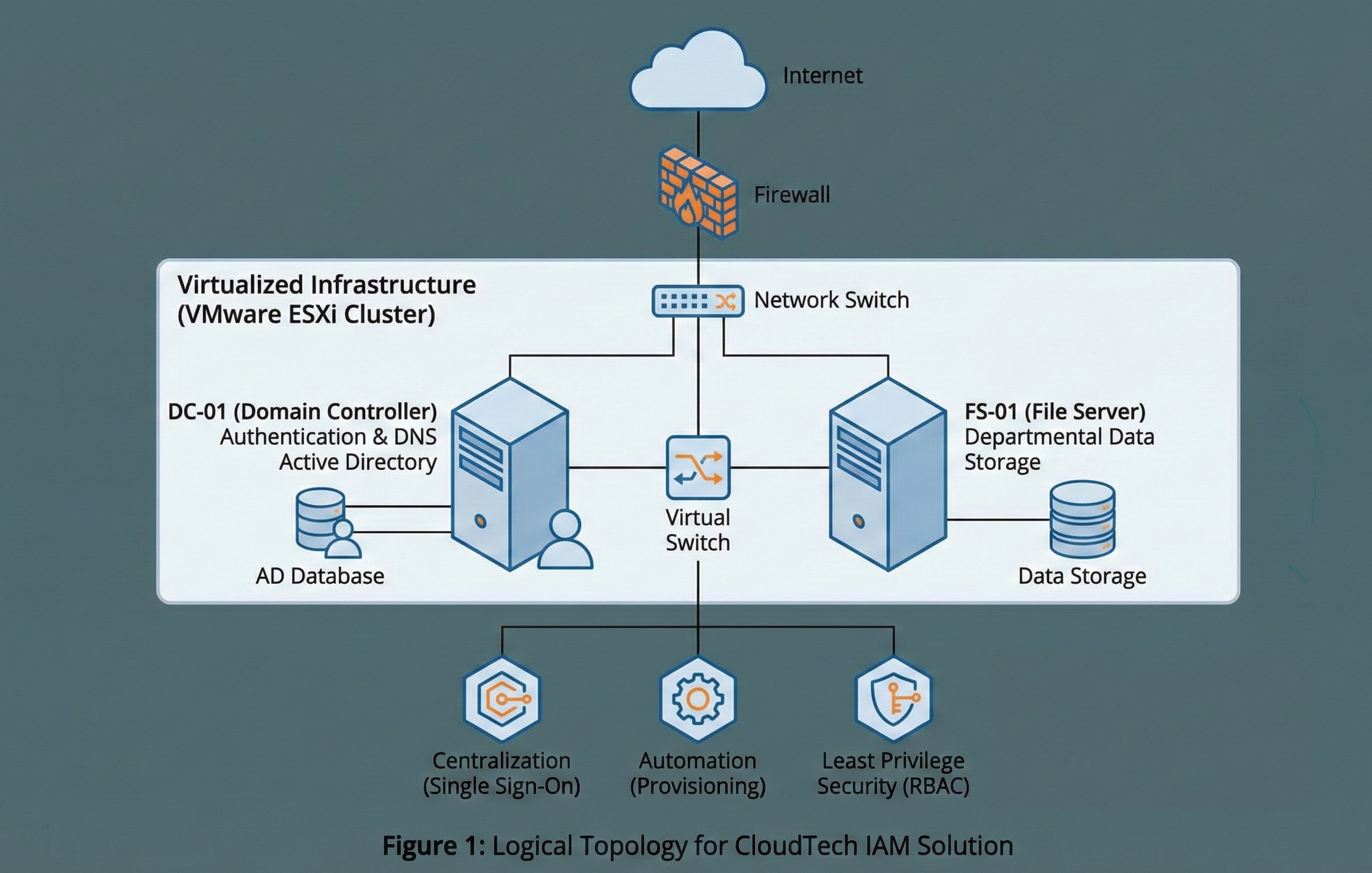
I designed and deployed a comprehensive Identity and Access Management (IAM) solution centered around Microsoft Active Directory. The solution focused on three pillars: Centralization, Automation, and Least Privilege Security.
Infrastructure Architecture
I provisioned a redundant virtualized environment on VMware ESXi to host the core services:
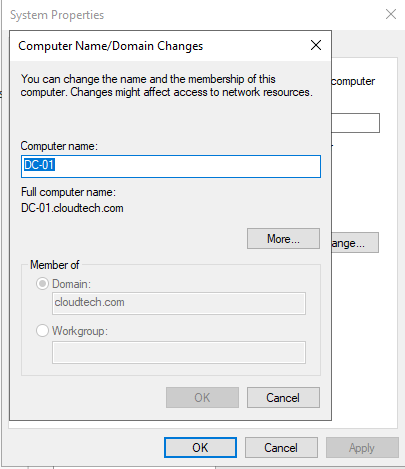
- DC-01 (Domain Controller): Established a new Active Directory forest with a single domain (cloudtech.com) and configured DNS for proper name resolution.
- FS-01 (File Server): A dedicated storage server for departmental data.
Automation Strategy
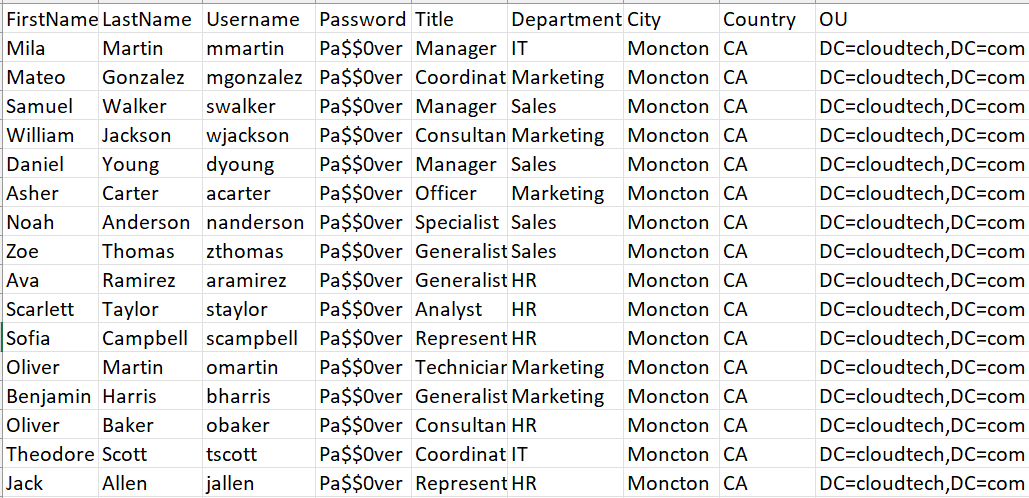
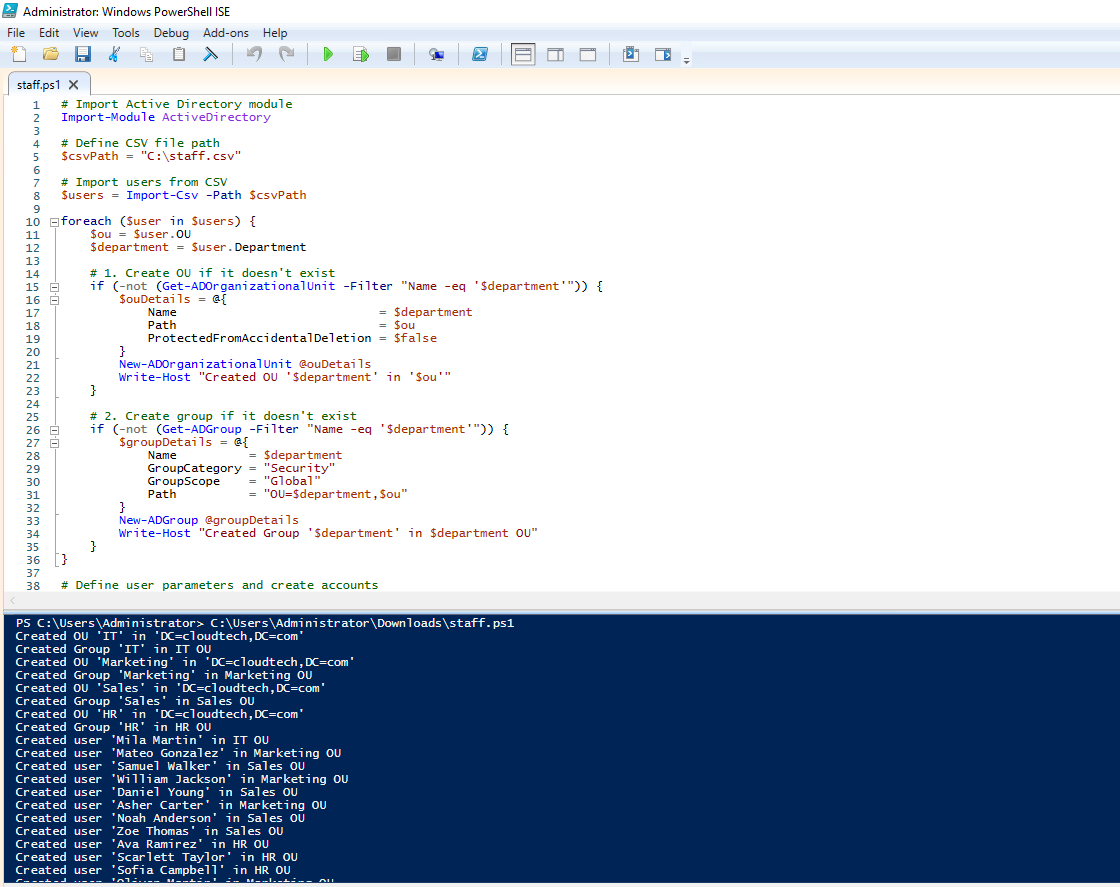
To address the onboarding bottleneck, I rejected the manual creation of users. I developed a PowerShell automation script capable of ingesting CloudTech's HR CSV exports.
The script logic:
- Imports user metadata (Name, Dept, Role,etc).
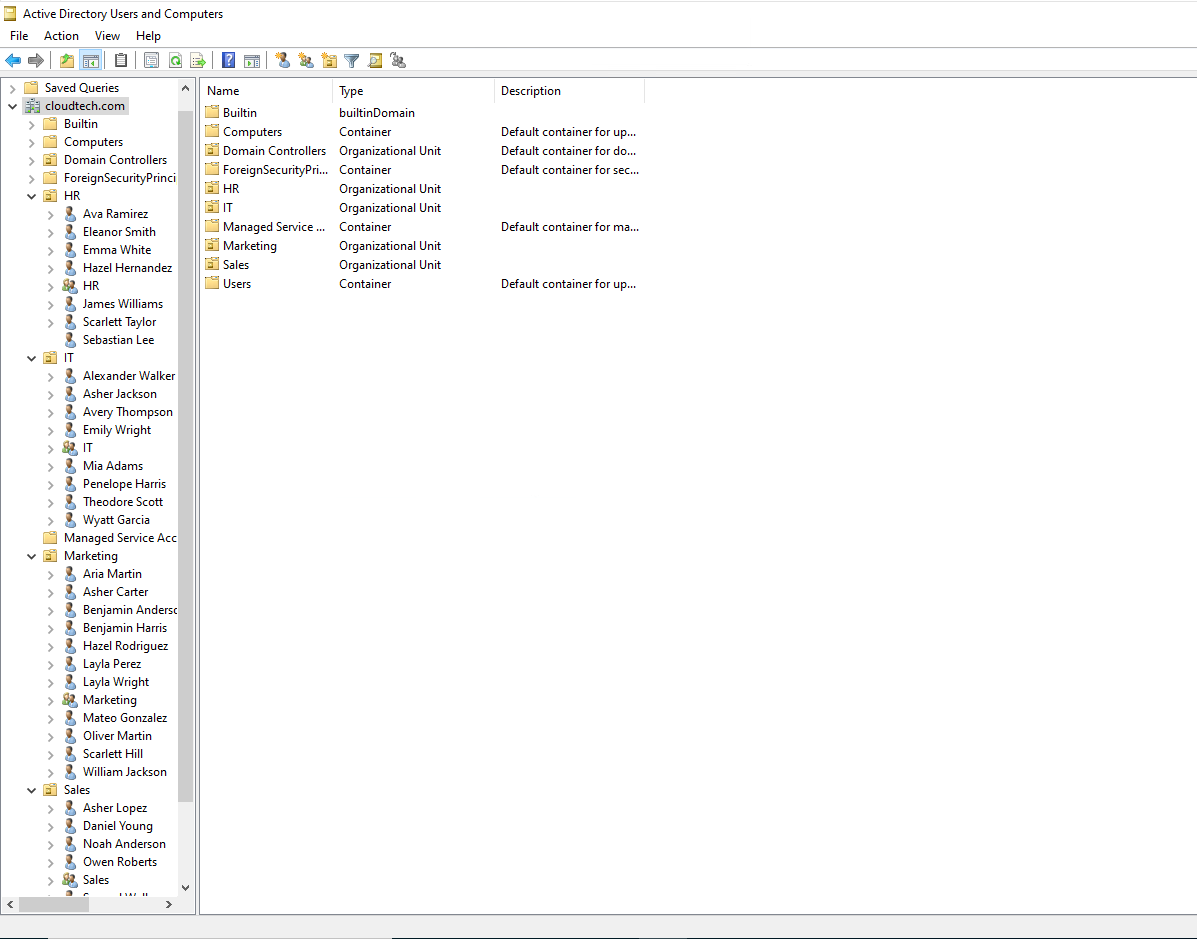
- Creates an Organizational Unit (OU) for each department.
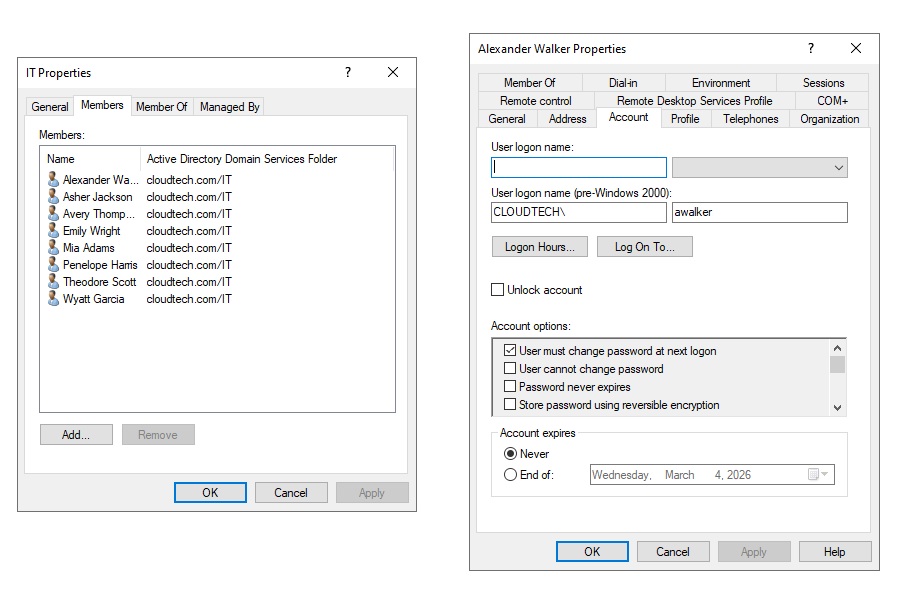
- Creates a group for each department.
- Creates each user account, enables it, and assigns them to the appropriate OU and group.
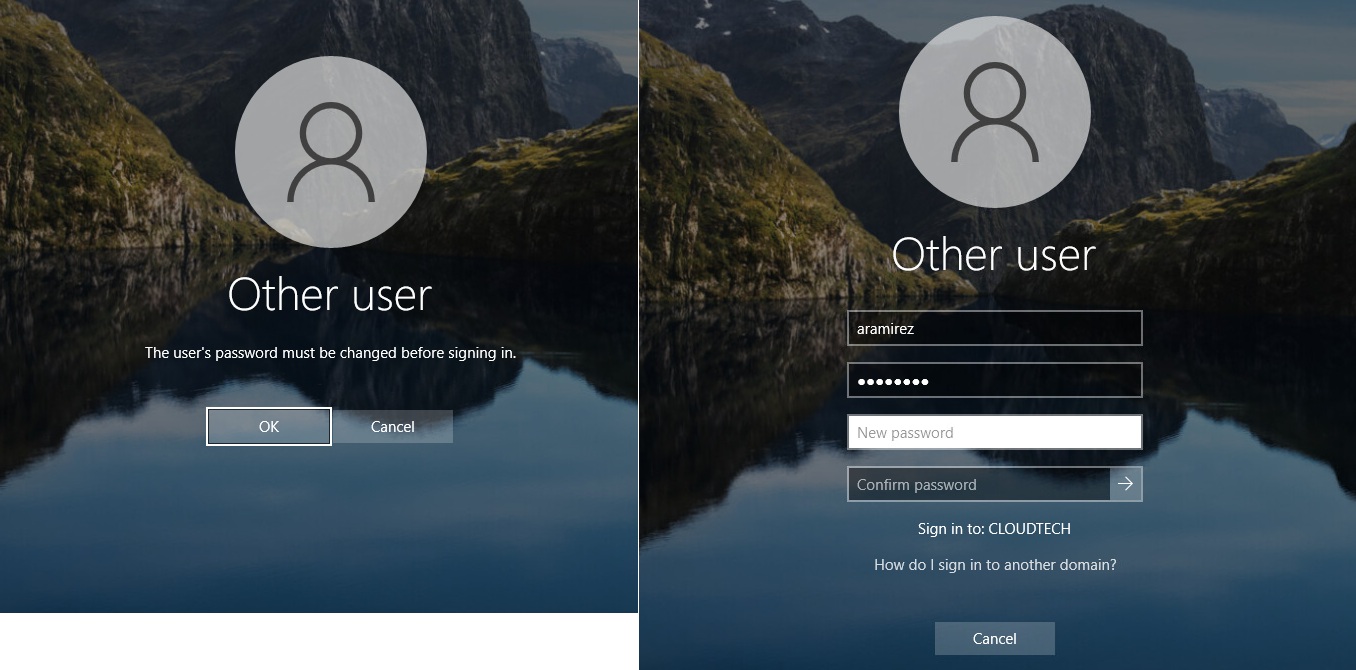
- Assigns a temporary password to each user and forces a password change on first login.
- Result: 50 user created in less than 10 seconds
A link to the script on GitHub can be found here
Role-Based Access Control (RBAC) - Drive Mapping
I configured Drive Mapping to ensure data isolation between departments. I utilized NTFS permissions to enforce access controls.
I configured the file server (FS-01) to host department-specific data. I then created group policies to map the appropriate folders to each department's users.
- I created and initialised a new disk on the file server (FS-01)
- Created a root folder E:\CompanyData
- I created subfolders for each department in the root folder
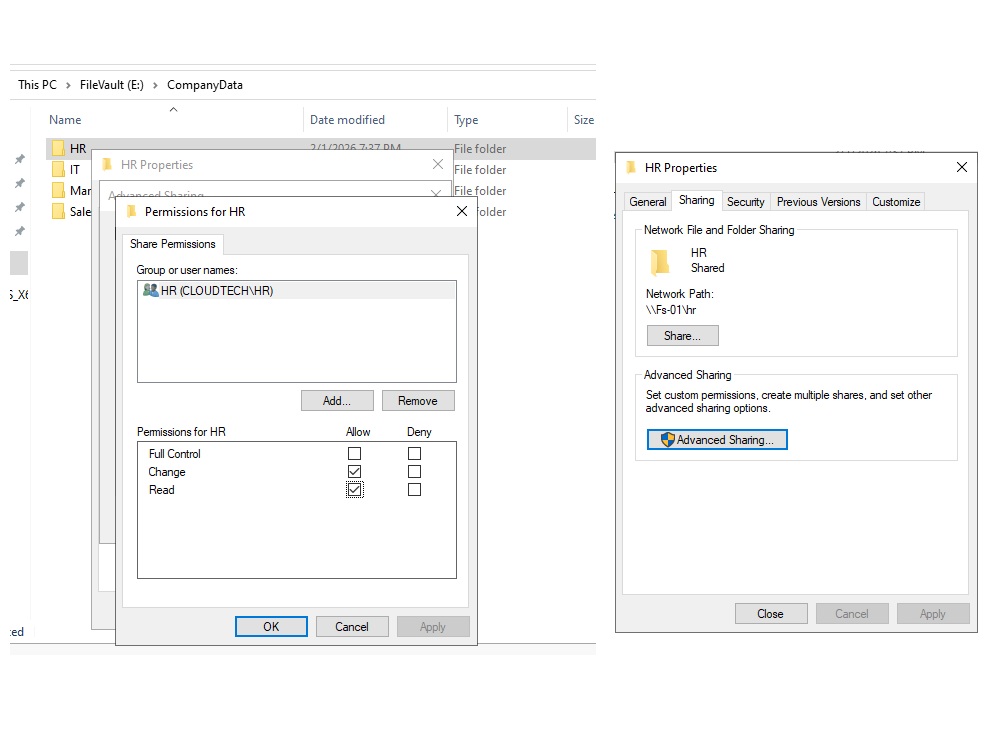
Configuring Sharing
- Right-click HR folder in CompanyData -> Properties -> Sharing -> Advanced Sharing.
- Check "Share this folder".
- Share Permissions: Remove "Everyone". Add the HR group and assign Change/Read permissions.
- Repeat the same process for the other departments
Configuring NTFS Security Permissions
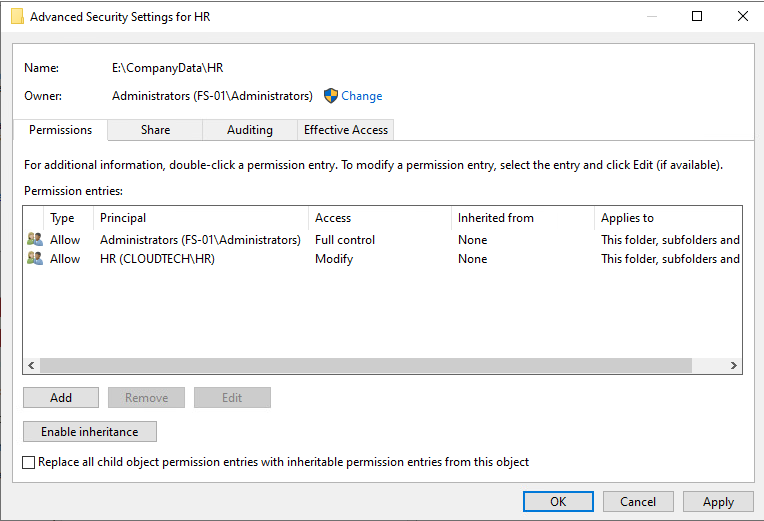
- Go to the security tab of the HR folder
- Click Advanced and disable inheritance to ensure clean permissions
- Assign Full Control to Administrators and Modify to the HR group. With Modify, they can create, edit, and delete files and folders within the HR directory but cannot assign permissions to other users.
- Repeat the same process for the other department folders
Configuring Group Policy
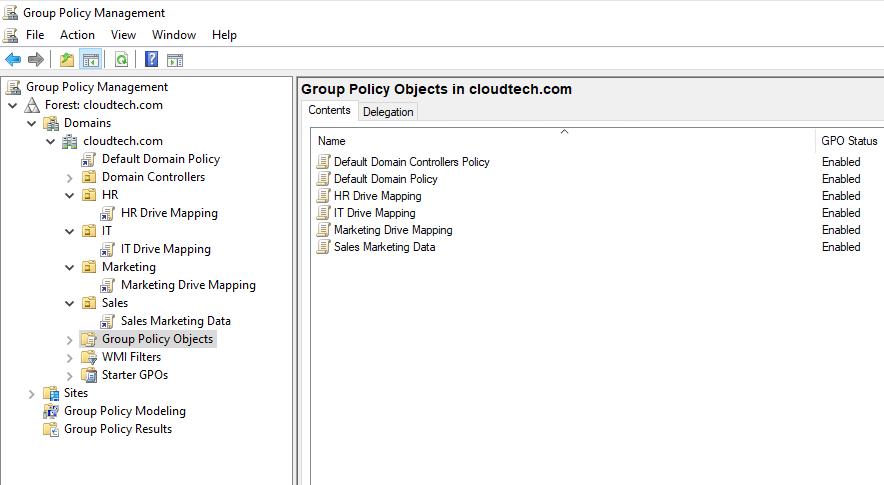
I configured Group Policy to map the appropriate folders to each department's users.
- Open Group Policy Management on DC-01
- Right-click HR OU and select Create a GPO in this domain, and link it here...
- Name the GPO HR Drive Mapping
- Right-click the new GPO and select Edit
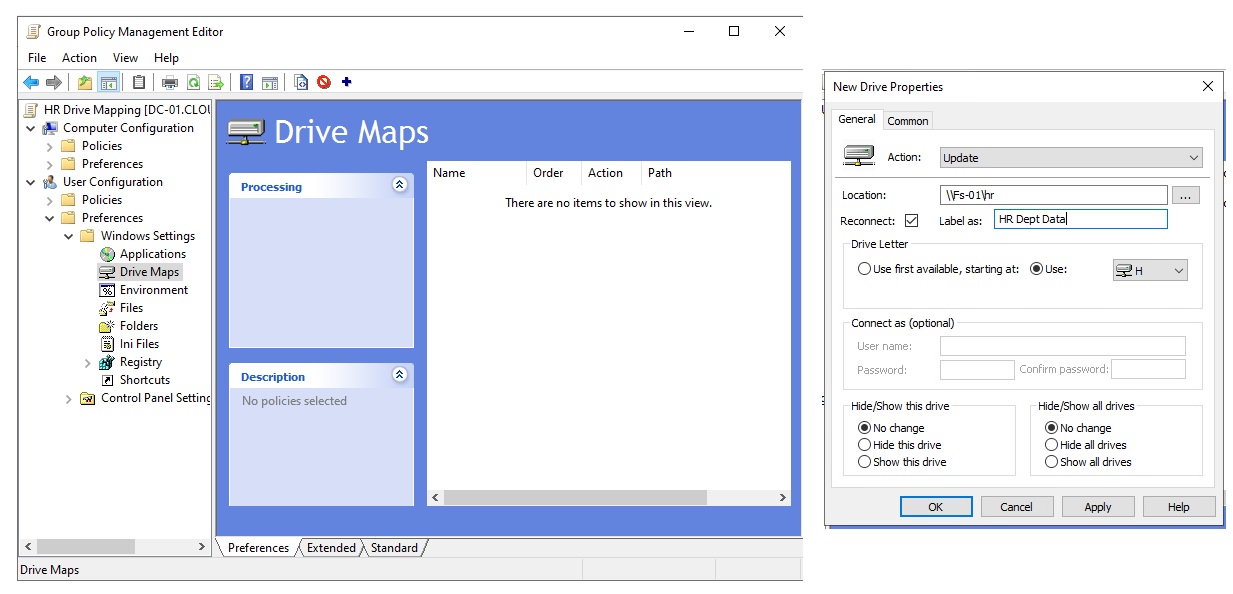
- Navigate to User Configuration -> Preferences -> Windows Settings -> Drive Maps
- Right-click Drive Maps and select New -> Mapped Drive
- Under General Tab:
- Action: Update (Creates the drive if it doesn't exist)
- Drive letter: H:
- Location: \\FS-01\HR
- Reconnect: Checked
- Label: HR Dept Data
- Under Common Tab:
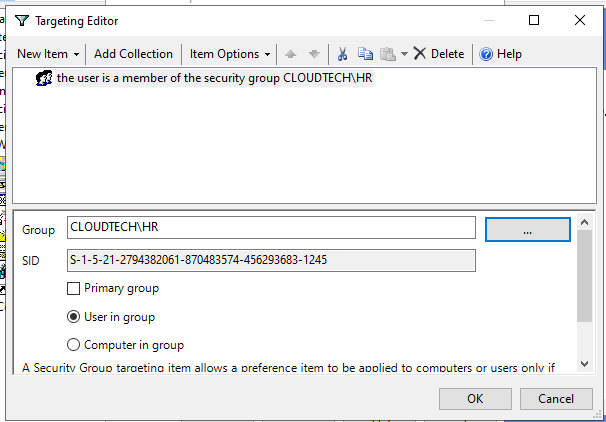
- Check Item-level targeting and click Targeting
- Click New Item -> Security Group
- Search and select the HR Group
- The drive will only map if the user is a member of the HR group
- Repeat the process for the other departments
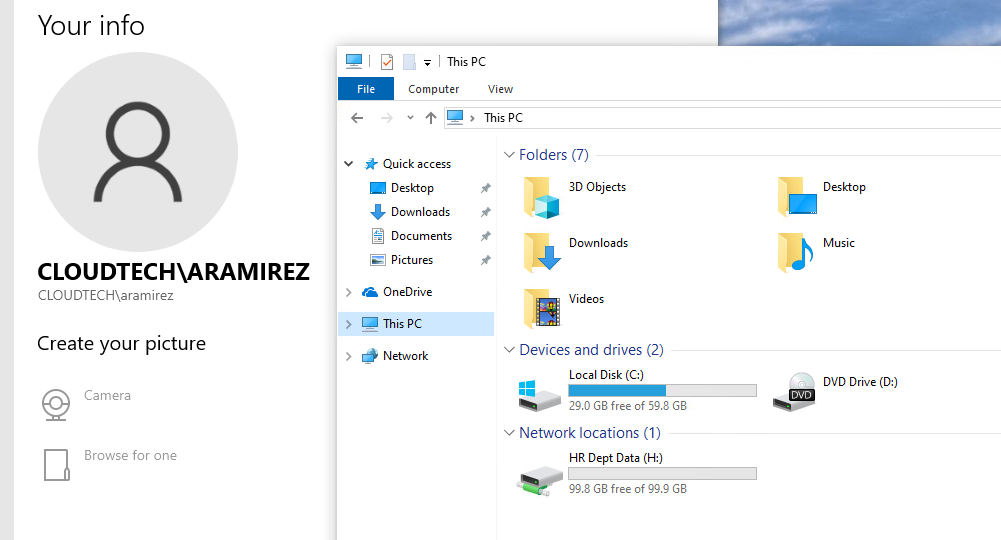
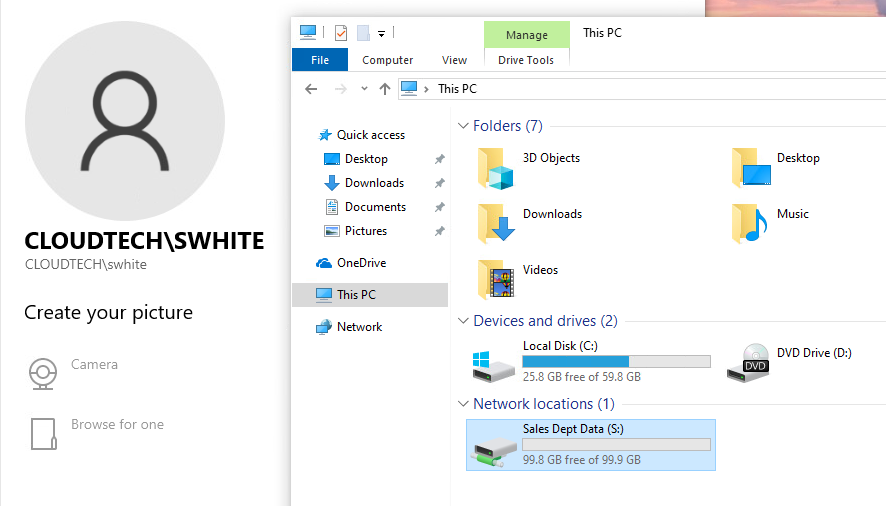
I logged in as a user in the HR group and verified that the drive was mapped.
Verification
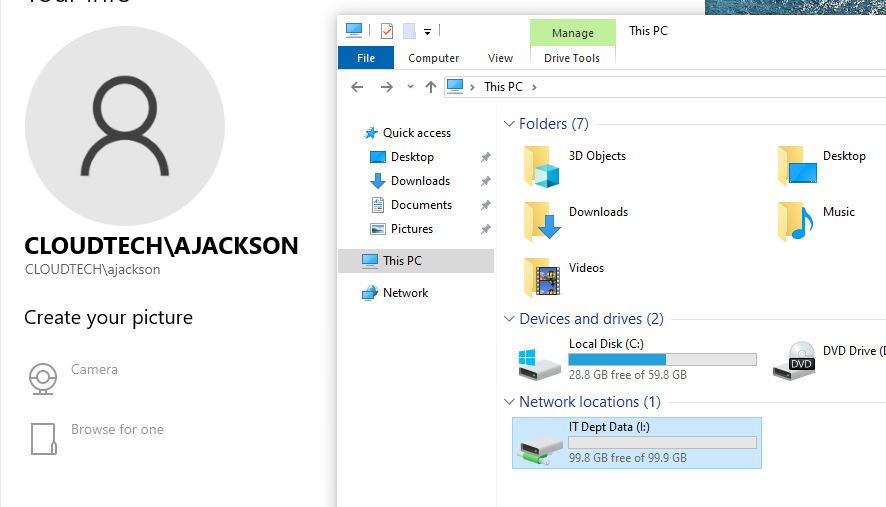
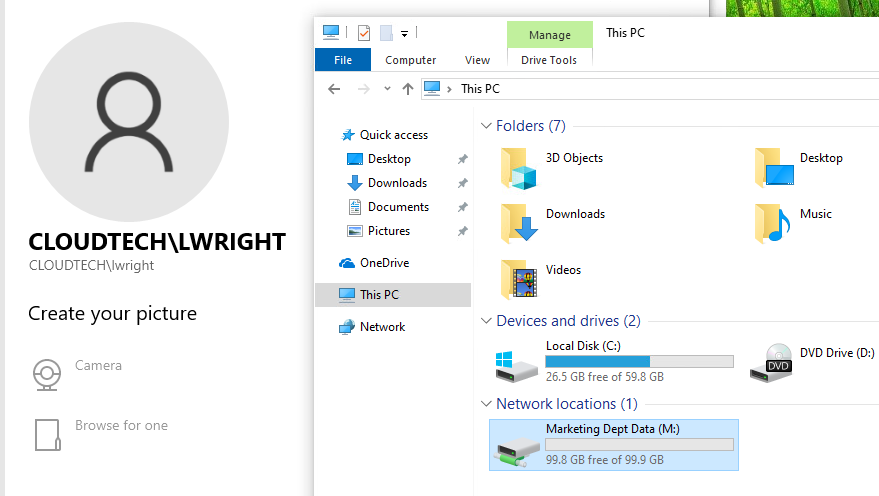
To confirm the policy was active, I logged in as a user in the HR group and verified that the drive was mapped. I then logged in as a user in each of the other departments to confirm that they had the correct drive mappings.
Configuring Password Complexity and Idle Timeout
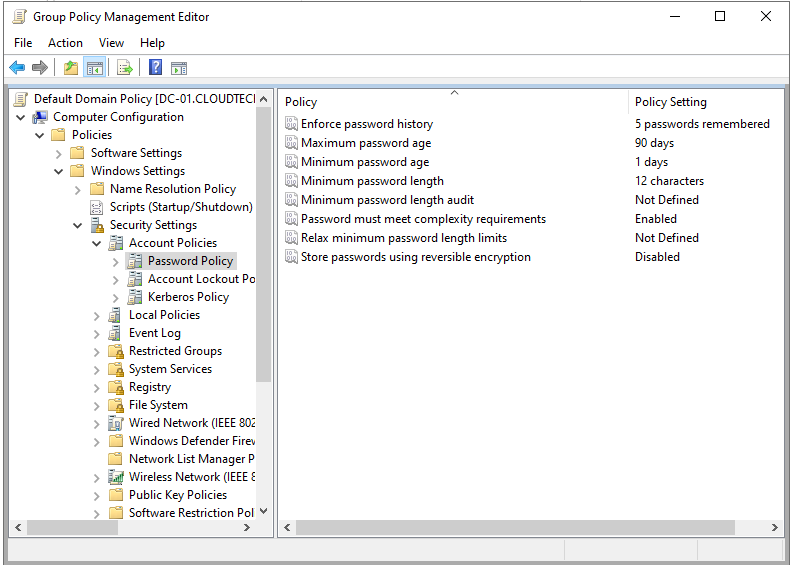
Password policies are unique because they must be applied at the domain level (via the Default Domain Policy) to function correctly for all users.
- Right-click the Default Domain Policy and select Edit.
- Navigate to: Computer Configuration -> Policies -> Windows Settings -> Security Settings -> Account Policies -> Password Policy
- Configure the password policy settings as follows:
- Password must meet complexity requirements: Enabled
- Minimum password age: 1 day
- Maximum password age: 90 days
- Minimum password length: 12 characters
- Enforce password history: 5 passwords
To secure unattended workstations, I configured the "Interactive Logon" policy. This ensures that if an employee walks away for a coffee break, their unlocked computer doesn't become a security liability.
- In the same GPO Editor (Default Domain Policy), navigate to: Computer Configuration -> Policies -> Windows Settings -> Security Settings -> Local Policies -> Security Options
- Locate the policy: Interactive logon: Machine inactivity limit.
- Set the value to 900 seconds (15 minutes).
How it works: Once the system detects no keyboard or mouse input for 15 minutes, it immediately invokes the screensaver and locks the session. The user must re-enter their credentials to resume work.
Conclusion
The CloudTech infrastructure modernization project successfully transformed a chaotic Workgroup environment into a secure, scalable Enterprise Domain. By automating routine tasks and enforcing policy-based security, CloudTech is now positioned for further growth with a secure foundation for future cloud integrations.