Executive Summary
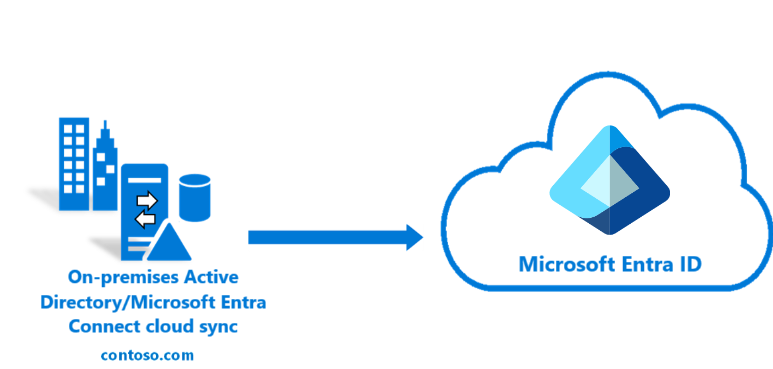
This project documents the successful deployment and configuration of Microsoft Entra ID Connect (formerly Azure AD Connect) to establish a unified Hybrid Identity solution for a mid-sized enterprise environment. The primary goal was to seamlessly synchronize on-premises Active Directory Domain Services (AD DS) user accounts and groups to Microsoft Entra ID, enabling Single Sign-On (SSO) and centralizing identity management to improve security and operational efficiency.
Background
CloudTech Solutions previously managed all identities locally on their domain controller. This limited remote work capabilities and created password management challenges. The IT team also struggled with inconsistent account provisioning and manual user creation for cloud applications.
Project Overview
The Challenge
The client lacked a unified identity solution, requiring users to maintain separate passwords for on-premises resources and cloud services (e.g., Microsoft 365). This led to:
- Inefficient user provisioning/deprovisioning.
- Increased help desk costs due to password resets.
- Security risk from inconsistent password policies and lack of centralized control.
- No MFA or modern authentication policies.
The Goal
To implement a Hybrid Identity solution using Microsoft Entra ID Connect to:
- Synchronize all on-premises user accounts and groups to Microsoft Entra ID (the cloud directory).
- Establish Single Sign-On (SSO) capability for all cloud applications.
- Centralize identity management to improve security and operational efficiency.
Implementation Steps and Configuration Details
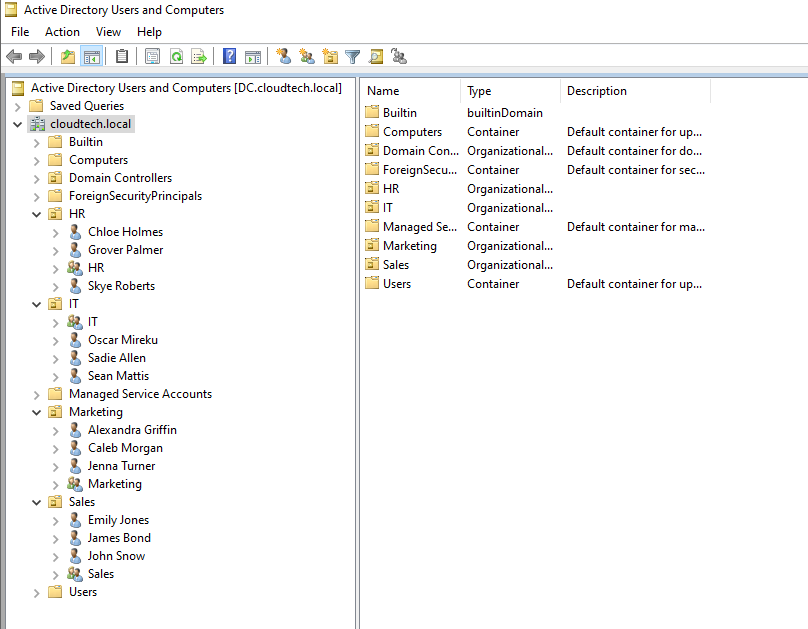
CloudTech Solutions currently operates with a single Windows Server 2022 domain controller for the cloudtech.local domain. The Active Directory Domain Services (AD DS) structure is organized into four main Organizational Units (OUs), reflecting the four departments: HR, IT, Sales, and Marketing. Each of these OUs contains three user accounts and one security group, as seen below.
To begin, download the Microsoft Entra Connect Sync application. You will find the download link within the Microsoft Entra Connect blade of the Microsoft Entra Admin Center. The application should then be installed on the Windows Server 2022 instance.
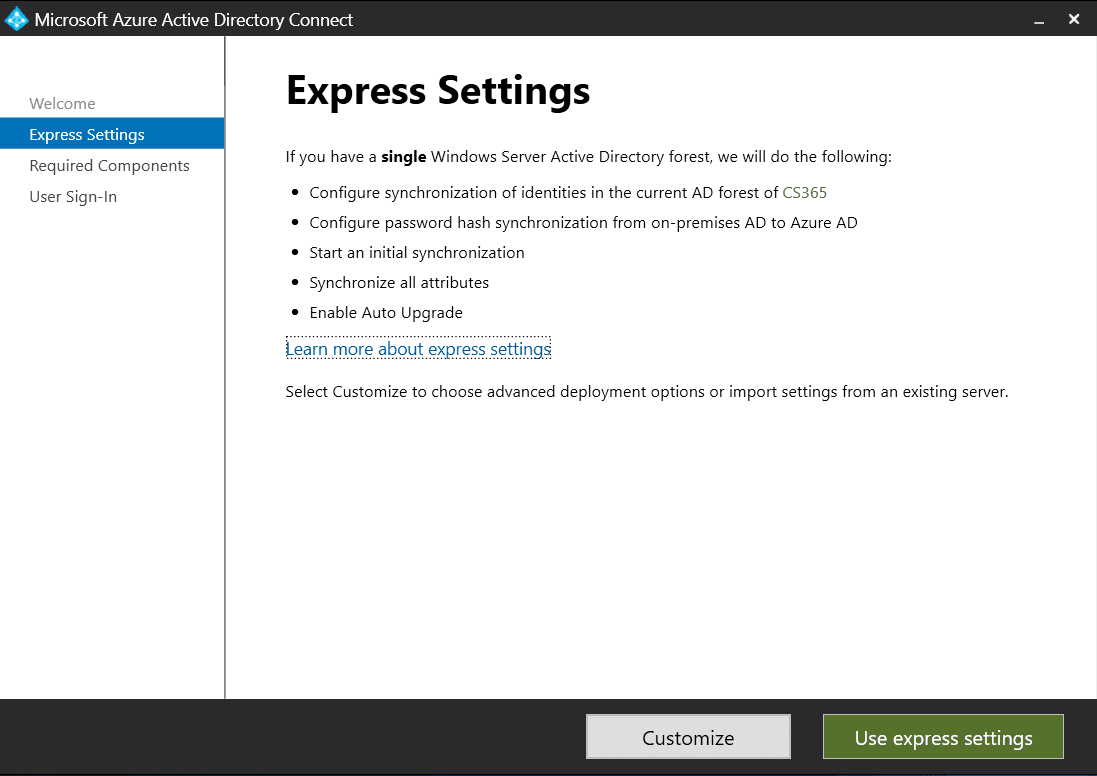
Using Express Settings
We will start by utilizing the Express Settings, which is the default and recommended
installation option for the majority of organizations
operating with a single forest topology. This will synchronize all attributes in the forest. We
plan to use the more advanced Custom Settings later on, as this option provides more granular
control over the installation and synchronization process.This allows for precise control over
which users and groups sync to the cloud,
in addition to enabling other configuration choices.
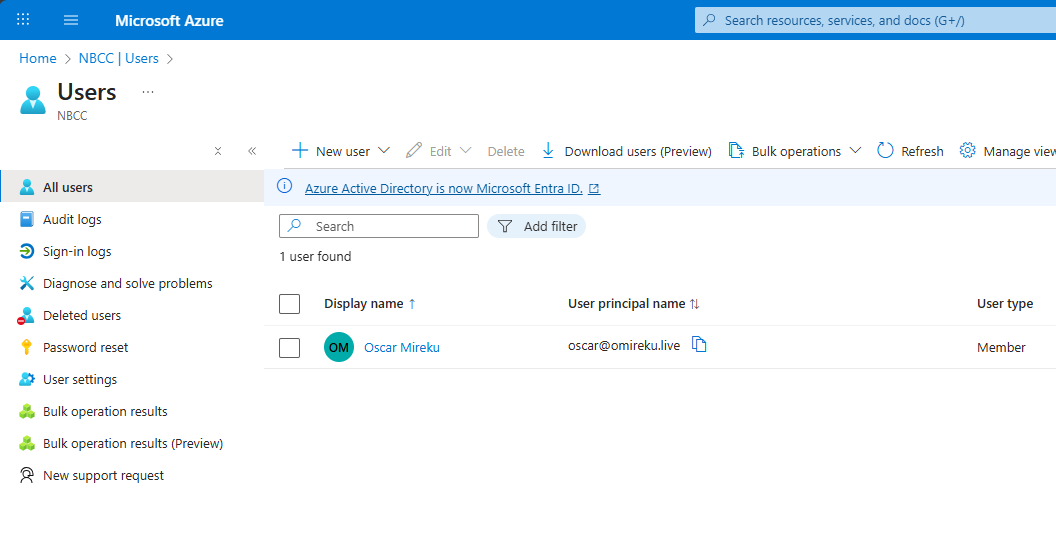
Presently, the Entra ID tenant contains only the Global Administrator account. This role is the most powerful and highly privileged built-in role available in Microsoft Entra ID, granting unlimited access to all administrative features within Entra ID and any integrated services that rely on Entra identities (such as Microsoft 365, Exchange, and SharePoint).
After the synchronization process is established, this area will be populated with the users and groups from your on-premises Active Directory.
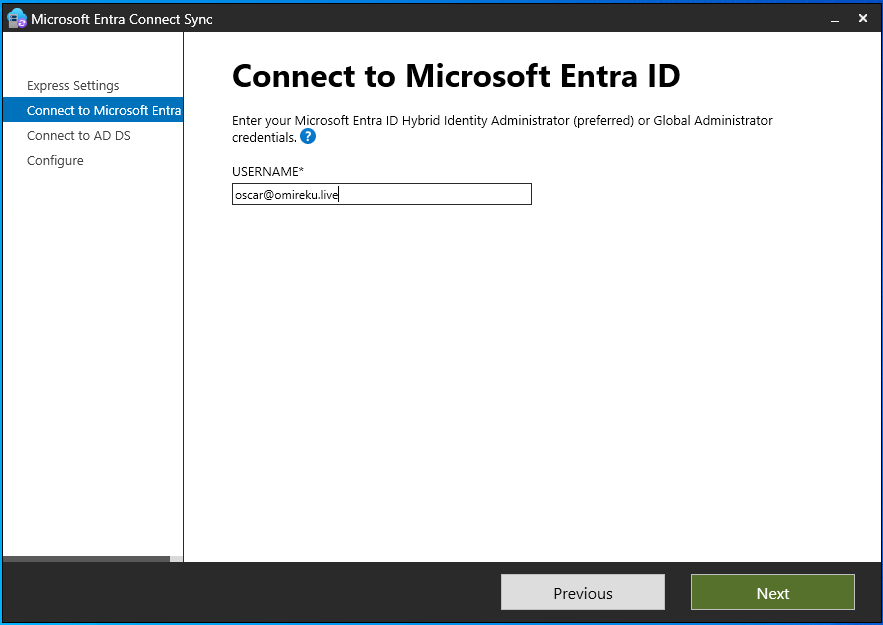
Enter the Global Administrator credentials for your Microsoft Entra ID tenant, and then click Next.
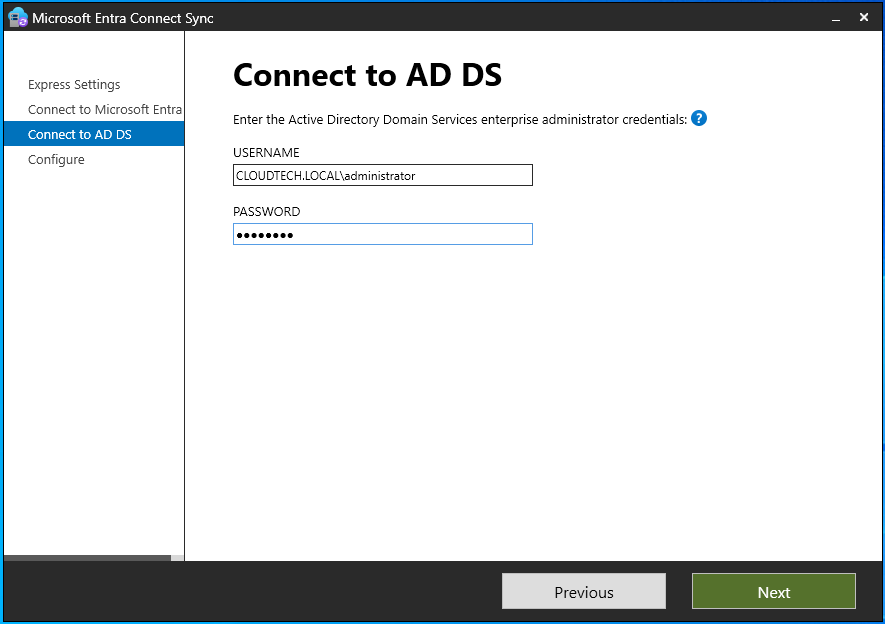
Provide the Enterprise Administrator credentials for your Active Directory Domain Services (AD DS), and then click Next.
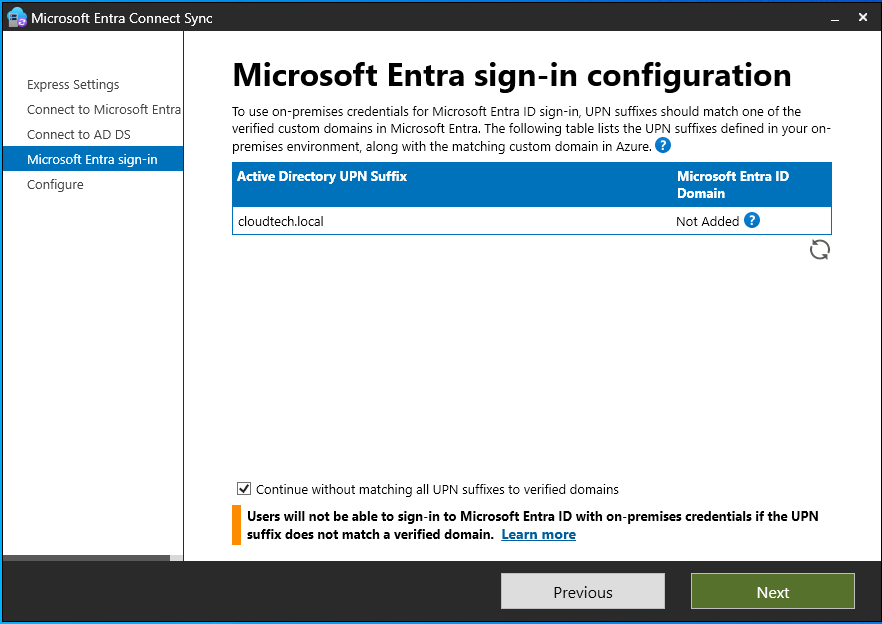
Select the option to continue without matching all User Principal Name (UPN) suffixes to verified domains, and click Next.
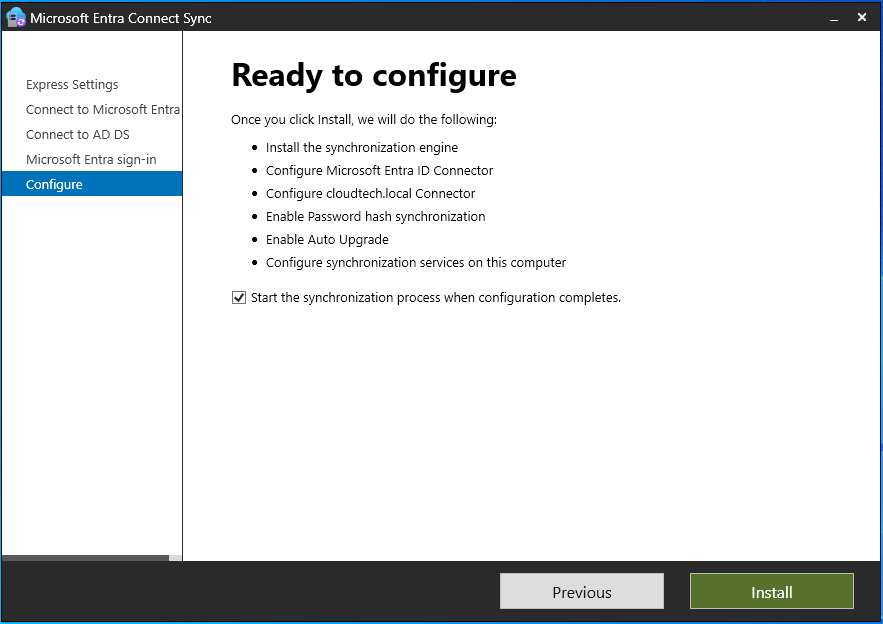
Click Install to begin the synchronization setup. This process will install necessary components, such as the Microsoft Entra Connect Health agent.
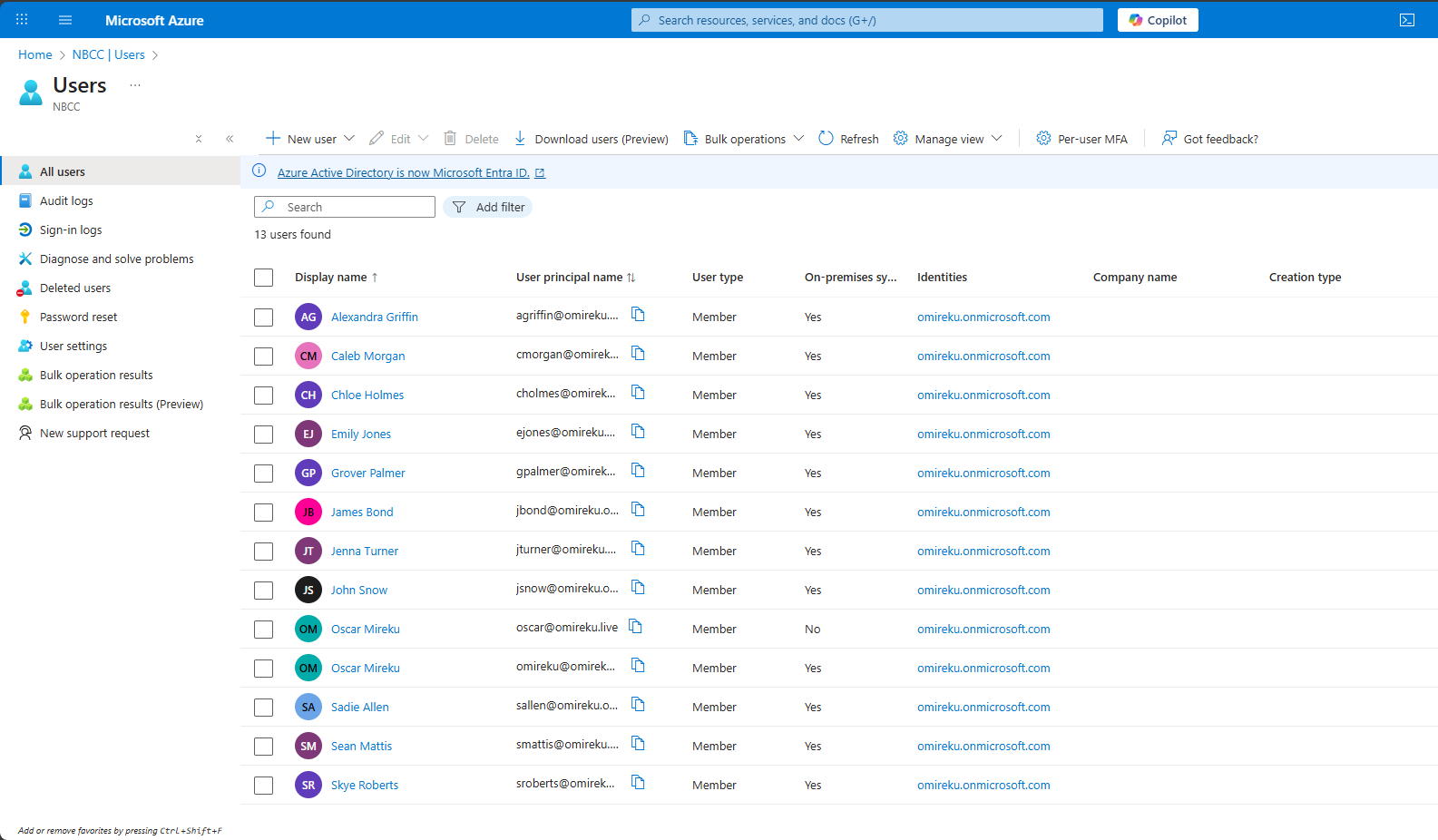
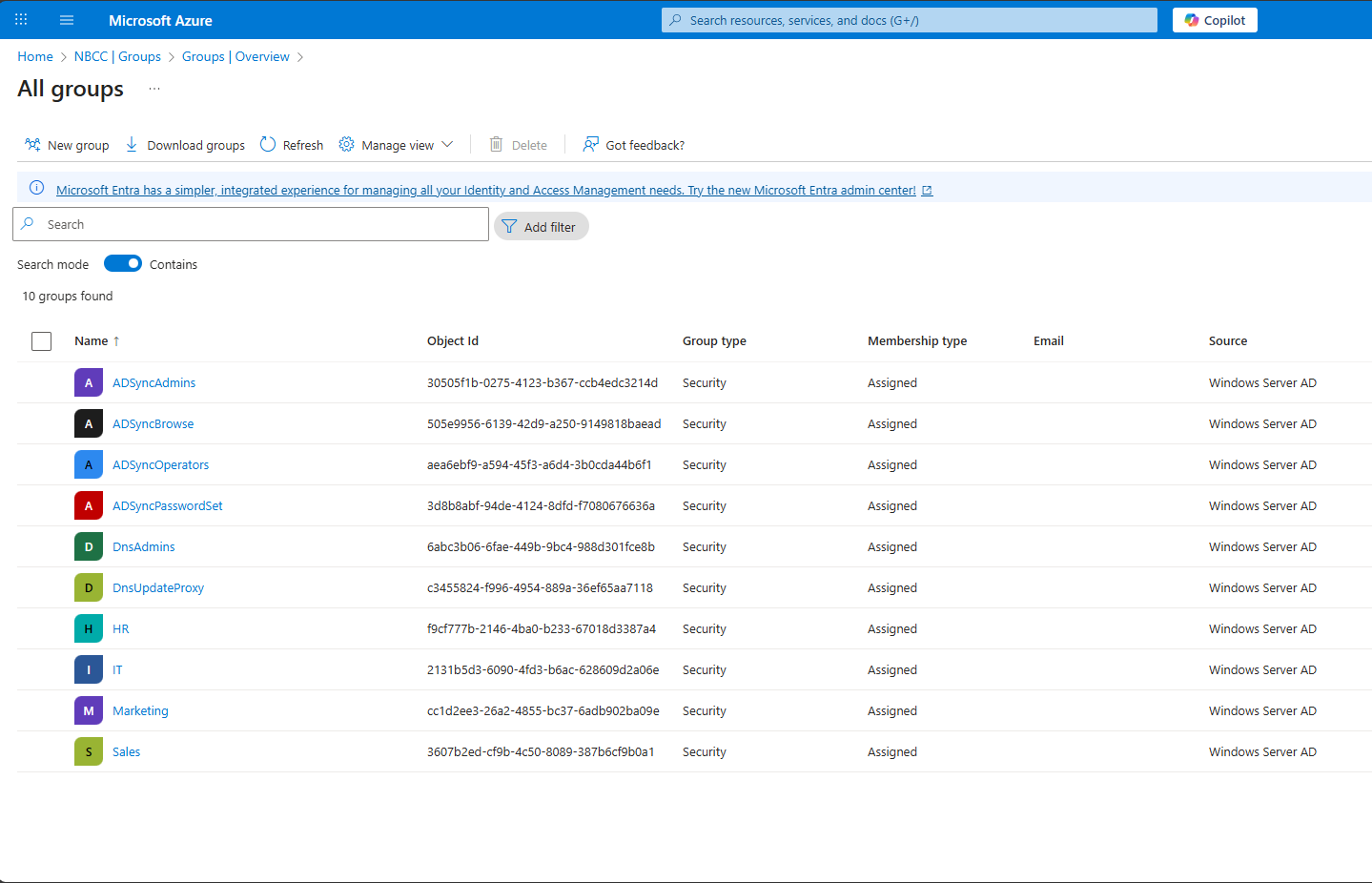
After the installation process is complete, navigate to the Microsoft Entra ID users and groups section to verify the newly synchronized objects.
Using Custom Settings
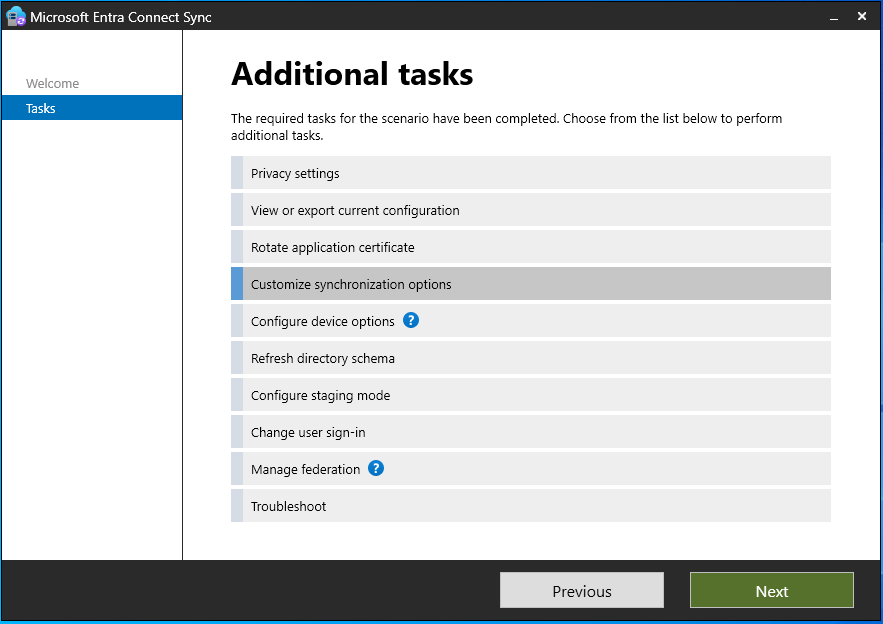
Select Customize Synchronization Options and click next.
Enter the credentials for both the Global Administrator (for Microsoft Entra ID) and the Enterprise Administrator (for Active Directory Domain Services), and then proceed by clicking Next.
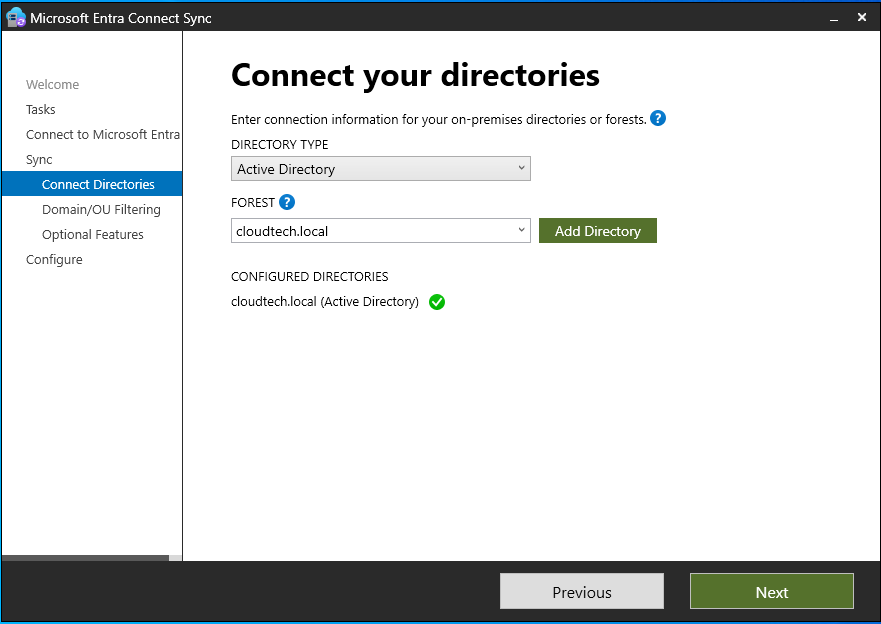
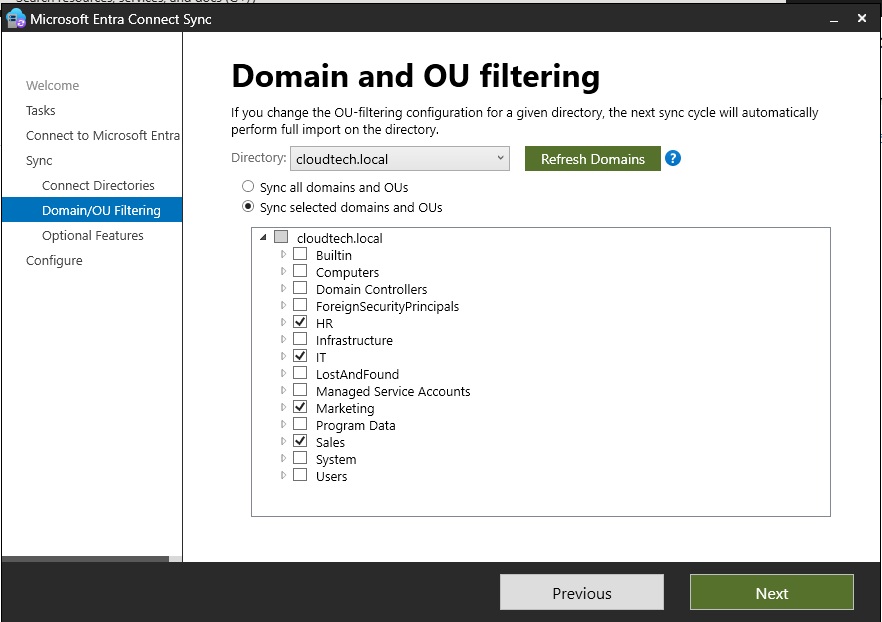
Connect the cloudtech.local forest, click Next, and then select the specific Organizational Units (OUs) that you wish to synchronize to Microsoft Entra ID.
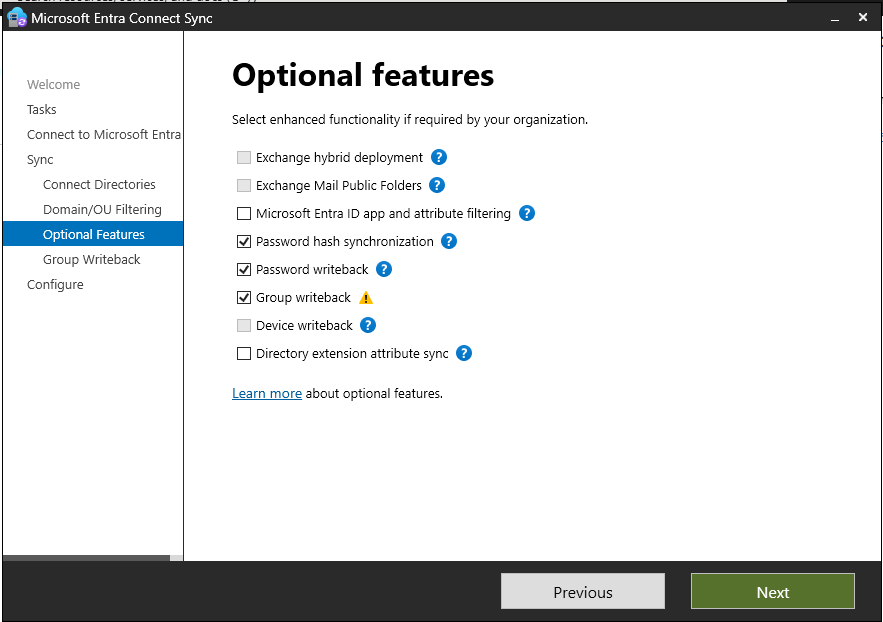
Enable below optional features:
- Password Hash Synchronization (PHS): Allows users to sign into Azure using their on-premises passwords without the need for additional Single Sign-On (SSO) infrastructure.
- Password Writeback: Enables password changes that originate in Microsoft Entra ID to be securely written back to your on-premises Active Directory.
- Group Writeback: Allows groups configured for writeback in Microsoft Entra ID to be written back to your on-premises directory.
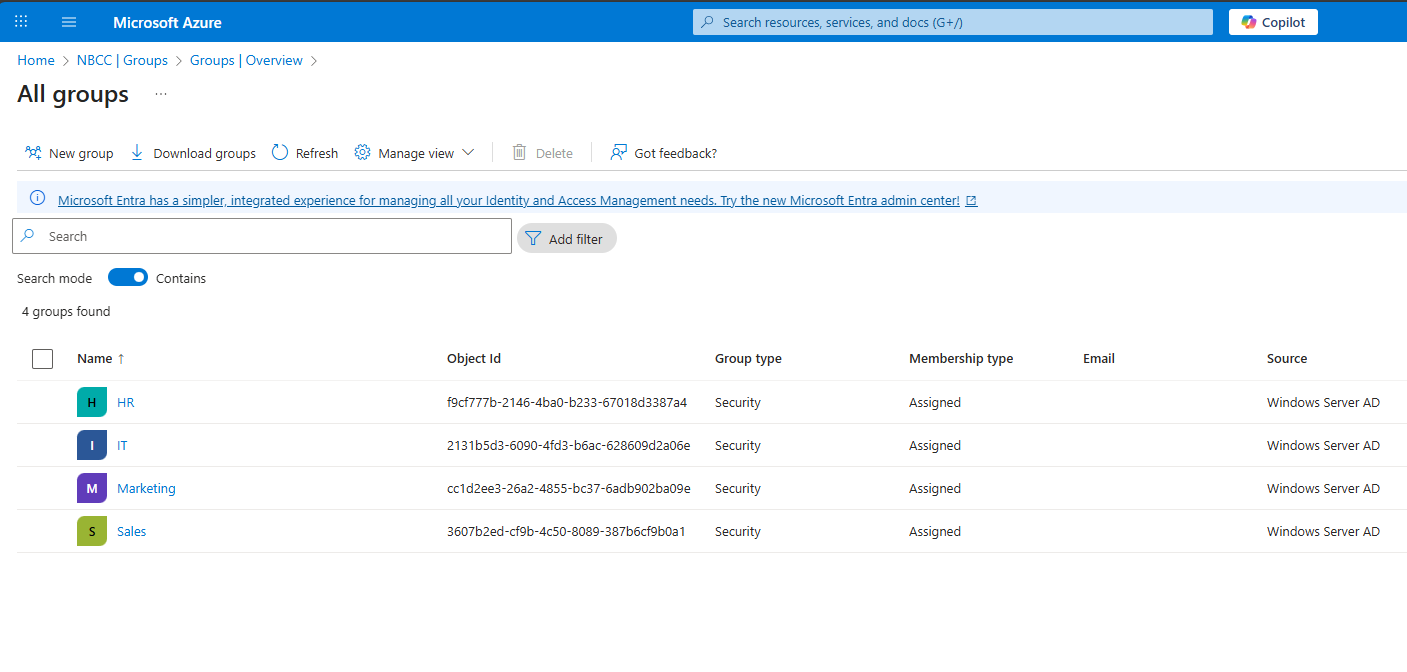
Once the configuration is complete, log back into Microsoft Entra ID groups to verify the synchronization results. You should see that only the groups within the selected Organizational Units (OUs) have been synchronized, while the existing user list in Entra ID remains the same.
Outcome and Achievements
By implementing Microsoft Entra ID Connect:
- 100% of employees now access both on-prem and cloud resources via SSO.
- IT support tickets for password resets dropped by 65%.
- CloudTech achieved simplified IT management through centralized password and policy controls.
- CloudTech achieved enhanced security posture with MFA and Conditional Access.
- CloudTech successfully met industry compliance requirements for data protection.